Workflows¶
Part of the user manual. Related: VISIBILITY · ROLES · PERMISSIONS · TENANCY · PROJECTS · NOTIFICATIONS · CONTACTS · EDMS · ACTIONS · TRANSMITTALS · EXPLORER. Workflow state rules are layer 5 of the five visibility layers.
Workflows are how work moves through REBIM. A workflow definition says "these statuses exist, these are the transitions between them, these roles can act at each step." A workflow event applies that definition to a specific thing — a document, a task, an issue — and carries it through the steps.
This page covers the workflow model end-to-end: what a workflow definition is, what a workflow event is, the transition mechanics, the dates + completion semantics, and the layer-5 visibility rules (completion gating, check-out interaction) that sit on top of the role mechanism in ROLES.
TL;DR¶
- Workflow definitions (
WorkflowWorkflow) are tenancy-wide configuration. They define statuses + transitions + role rules, not the actual work. - Workflow events (
WorkflowEvent) are the actual work — one per Task / Issue / etc. An event references a workflow definition (or no workflow, for ad-hoc events). - Events advance via transitions. Each transition is directional
(
status_from → status_to), can set dates automatically, can fire email + livefeed notifications, and may force a paired EDMS document status change. - Event types are: Task, Issue, Planned, Attachment, Comment, Pin, IoT. The same underlying model with different intended uses.
- Completion is gated by transition flags (
sets_complete_date) and per-workflow visibility rules (limit_completed_visibility). - A transition can carry a short SLA (
duration_target_hours) — a deadline for the next step, shown as a live Due/Overdue badge on the event tables (opt-in Transition SLA column). - Workflows can be locked to specific systems so they only show as an option for documents in those systems.
- FRA (Fire Risk Assessment) is a specialised workflow flag with its own dashboard + reporting surface. See FRA.
Workflow definitions vs workflow events¶
Two concepts often conflated in conversation; the distinction matters.
| Aspect | Workflow definition (WorkflowWorkflow) |
Workflow event (WorkflowEvent) |
|---|---|---|
| What it is | The blueprint — statuses + transitions + role rules | An instance of work flowing through that blueprint |
| Scope | Tenancy-wide configuration | Project-scoped data |
| Created via | Workflow designer (admin) | User action — "Create Workflow" on a document, or via Explorer / API |
| Lifetime | Persistent — defined once, reused for many events | Per-event — created, advanced, completed |
| References | Statuses + transitions | Workflow definition + status + project + (usually) a document |
When someone says "workflows are not working", clarify which they mean: the definition (is the admin's design broken?) or events running on it (is the specific Task/Issue stuck?).
Workflow definitions¶
A WorkflowWorkflow has:
| Attribute | Purpose |
|---|---|
name |
Display name. Shown to users picking a workflow for a new event. |
is_default |
When picking a workflow for a document, this one's pre-selected. Multiple workflows can have is_default=True; the first match wins. |
is_fra |
Flags this as a Fire Risk Assessment workflow — surfaces it in the FRA dashboard + reports. See FRA. |
force_edms_status |
If set, the workflow's start transition will also set the document's EDMS status to this. Per-transition force_edms_status overrides for downstream transitions. |
locked_to_systems |
M2M to ProjectSystem. When non-empty, this workflow only appears as an option for documents whose system is in this list. |
limit_completed_visibility |
M2M to ProjectDiscipline. When the workflow completes, only users holding these disciplines (plus admin / project_admin / owner / assignee) still see the event. See Completion gating below. |
completed_visible_to_any_role |
When True AND limit_completed_visibility is empty, ANY user holding ANY discipline still sees the completed event. Otherwise only admins / project_admins / owners / assignees do. |
only_show_if_exclusive |
When True, this workflow only appears as an option for projects whose single_exclusive_workflow field points to it. Used to keep specialised workflows out of general-purpose pickers. See PROJECTS. |
starting_message |
Markdown / text shown to the user when they pick this workflow for a new event. Useful for "make sure you've ticked X before starting this" reminders. |
designer_json |
The visual layout from the workflow designer (node positions). The DB rows for statuses/transitions are authoritative; this just persists the diagram appearance. |
import_uid |
Stable identifier across exports/imports. Don't edit. |
tenants |
Tenancy (TENANCY) — config tenant convention. |
Statuses (WorkflowStatus)¶
Statuses are the steps a workflow event passes through — e.g. Draft, Review, Approved, Rejected.
| Attribute | Purpose |
|---|---|
name |
Display name |
css_class |
Bootstrap classes for the status button rendering (btn btn-default, btn btn-success, etc.). Controls colour-coding in tables. |
status_type |
One of: Task / Issue / Planned / Attachment / Comment / Pin / IoT. Determines which event types this status can be used for. |
exclude_from_fra_baked_reports |
When True, events in this status don't appear in FRA "baked" snapshot reports. Used for statuses that are "in flux" and not worth snapshotting. |
tenants |
Tenancy. Config tenant convention. |
Statuses are referenced by transitions (status_from / status_to)
and by events (the current status). They don't carry role rules
themselves — that's on transitions.
Transitions (WorkflowTransition)¶
A transition connects two statuses — status_from → status_to — and
carries the rules for who can perform the move, what happens when it
fires, and which roles get notified.
Core attributes:
| Attribute | Purpose |
|---|---|
workflow |
The workflow this transition belongs to |
status_from, status_to |
The two endpoints |
is_start |
First transition in the workflow — what gets fired when an event is created against this workflow |
is_end |
Final transition — completing this advances the event into a completed state |
name |
Display label on the action button ("Approve", "Reject", "Request Changes", etc.) |
force_edms_status |
If set, performing this transition also sets the document's EDMS status to this — keeps the document status synced with the workflow stage |
Role-related attributes (see ROLES for full coverage):
any_role— bypass disciplines, any role-holding member can act. Permission only: it does not change who is notified.transition_roles— see + perform.readonly_roles— see only.commentonly_roles— see + comment.requires_role_leader— pair with the above; only role leaders can perform.notify_*flags — fine-grained notification toggles per role category, plusnotify_all_project_membersto email everyone on the project.
Date-related attributes (see Dates and auto-setting below):
sets_start_date— when this transition fires, set the event'sstart_dateto today.sets_due_date— setdue_datetostart_date + start_to_due_days(today ifstart_datenot set).start_to_due_days,use_working_days— how to compute due.sets_due_date_using_system— alternative: use the document's system'sworkflow_start_to_due_daysinstead of the transition's.sets_complete_date— mark the workflow event complete.sets_revision_complete_date— mark the associated document revision'scompletedate.
SLA (see Transition SLAs below):
duration_target_hours— hours allowed for the event's next transition after this one fires (0= no SLA). Drives the live SLA badge on the tables.
Other:
update_status_history— when this transition fires, append the status change to the event'sstatus_historyfield (a free-text log).hold_for_attachment— block this transition until the event has asecondary_attachmentorcontent_attachmentset. Used for workflows that require evidence (photo / report) before advancing.send_transmittal— the transmittal sibling ofhold_for_attachment. Wherehold_for_attachmentmakes the next transition out collect a file,send_transmittalmakes it open the Transmittal form for the workflow's document. The transition only completes once a transmittal has actually been sent — closing the form leaves the workflow on this step ("commit-after"). Likehold_for_attachmentit's a front-end gate (not server-enforced), and the two are mutually exclusive on a single transition (WorkflowTransition.clean()rejects both at once). Typically set on an end-of-workflow "issue" step, after the document is approved/stamped.collect_collated_comments— the third sibling. The next transition out prompts for a single "collated comments" file, stored on the document's active revision (a third file alongside primary/secondary — see EDMS § Revisions). Unlikehold_for_attachment(which captures the file as a discussion comment), this makes the file a first-class revision artefact: it shows in Manage Revisions, can be attached to transmittals (send_collated_comments), and is downloadable by anyone with the document — even without View Discussion access. The document must have a revision to attach to, otherwise nothing is captured (it fails loud rather than silently dropping the file). All three flags are mutually exclusive on one transition — they share the same next-transition popup, enforced byWorkflowTransition.clean().
The workflow designer¶
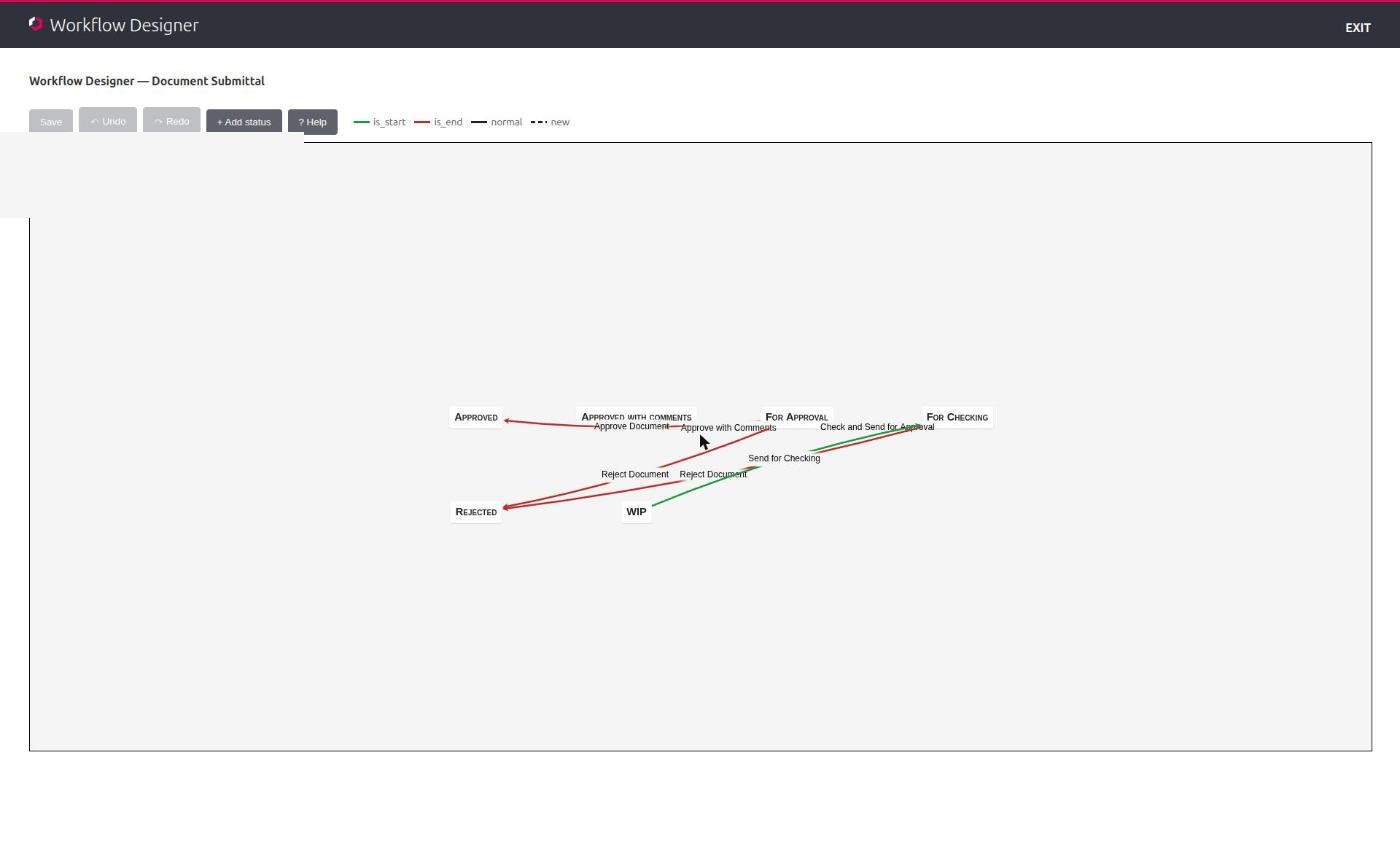
REBIM ships with a visual workflow designer at
/admin/workflow-designer/<pk>/. It renders the statuses + transitions
as a GoJS diagram and lets admins drag-and-drop to lay them out.
The designer:
- Edits the same DB rows the admin form does (statuses + transitions are reused canonical records, not designer-internal copies).
- Persists node positions in
WorkflowWorkflow.designer_json. The DB rows remain authoritative for behaviour; the JSON just supplies layout. - Is the recommended editor for non-trivial workflows. The flat admin form works for one-or-two-transition workflows but gets unwieldy for anything with branches.
Requires superuser (admin panel access).
Workflow events¶
A WorkflowEvent is one row in the actual workflow tables — one
Task, one Issue, one Comment, etc.
Event types¶
WorkflowEvent.workflow_type is one of:
| Type | Typical use |
|---|---|
| Task | Work to be done on a document or in a project. The most common type. |
| Issue | Something wrong / requiring attention. Often surfaced more prominently in dashboards. |
| Planned | A scheduled future activity. Often paired with the Scheduler for recurring versions. |
| Attachment | An attachment delivery — uploading a piece of supporting evidence. |
| Comment | A discussion thread item. Comments on other events are stored as Comment-type child events linked via content_parent. |
| Pin | A geographic / location marker on a 2D drawing or 3D model. |
| IoT | Auto-generated by IoT integrations (sensor alerts etc.). Read-only in normal UI. |
The same underlying model + workflow machinery applies to all types. The type affects:
- Which icons + columns appear in the table view.
- Which statuses are eligible (each
WorkflowStatushas astatus_typeconstraint). - Whether the event is filterable / sortable in certain dashboards.
Workflow events vs ad-hoc events¶
An event with workflow_workflow set is a workflow event — it
runs through the linked definition's statuses + transitions, gets
role-based visibility per ROLES, and supports all the
transition mechanics.
An event with workflow_workflow = null is an ad-hoc event — a
standalone task / issue / pin with no workflow definition behind it.
Ad-hoc events:
- Have no transitions — they're created and exist, that's it.
- Have minimal visibility rules: owner, assignee, project admin, superuser only. NO role mechanism applies.
- Are useful for "I just need to record this without bureaucracy."
You can convert an ad-hoc event into a workflow event by setting
workflow_workflow after creation. Going the other way (workflow →
ad-hoc) is unusual and unwise — the event loses its history.
Key event attributes¶
| Attribute | Purpose |
|---|---|
name |
Display name (the event title) |
details |
Long-form description |
project |
The project this event belongs to (project membership is layer 2) |
workflow_workflow |
Reference to the workflow definition (null = ad-hoc) |
workflow_transition |
The most recent transition that fired (used for "who can revert this" logic) |
status |
Current status (null = no status, e.g. ad-hoc events) |
workflow_complete |
True when the workflow has been completed |
owner |
Creator |
assigned_to |
The user the event is assigned to. Carries visibility weight in ROLES. |
start_date, due_date, complete_date |
Lifecycle dates — set automatically by transitions or manually |
status_history |
Free-text log of status changes (transitions with update_status_history=True append here) |
content_document |
The "source" document the event is about. Usually set when the event was created from a document's "Create Workflow" action. |
content_attachment |
Optional secondary document (e.g. an attached report). |
secondary_attachment |
Optional non-EDMS file attachment (uploaded directly). |
attachment_metadata |
JSONField for camera / GPS / source metadata on secondary_attachment — populated by the mobile app at capture time. Storage only; not validated by the server. |
content_anchor |
Object ID in a 3D model — links the event to a specific element. |
content_parent |
For comments / sub-events: parent event. |
related_event |
Another event this one is related to (used for "this workflow has multiple events" patterns). |
Dates and auto-setting¶
The event's three lifecycle dates — start_date, due_date,
complete_date — can be set automatically by transitions or manually
on the event form.
sets_start_date¶
When the transition fires, sets event.start_date = today (if not
already set). Typically goes on the first real "work begins" transition.
sets_due_date¶
Sets event.due_date = (event.start_date or today) + start_to_due_days.
- If
use_working_days=True, the calculation skips weekends. - If
start_to_due_days=0and this flag is set, the due date becomes today.
sets_due_date_using_system¶
Alternative source for due-days. Uses
event.content_document.system.workflow_start_to_due_days instead of
the transition's own start_to_due_days. Useful for per-system tuning
("HVAC reviews are always 14 days, plumbing reviews 7 days") without
duplicating transitions.
When both sets_due_date and sets_due_date_using_system are set,
the system override wins.
sets_complete_date¶
Marks the event as complete:
- Sets
event.complete_date = today. - Sets
event.workflow_complete = True.
The event now passes the "is complete" predicate and is subject to Completion gating.
sets_revision_complete_date¶
Like sets_complete_date, but on the document revision the event
references (not the event itself). Used when completing a workflow
event ALSO means the revision is signed off.
Transition SLAs (time to the next transition)¶
Beyond the whole-event due_date, a workflow can put a short deadline on
an individual step: "once you reach this status, the next move must happen
within N hours." This drives an at-a-glance SLA badge on the event tables —
e.g. "3h 40m left" turning to "Overdue 1h 12m" — so time-critical steps
(the classic case: evidence attendance within 4 hours) are visible without
opening each event.
Configuring the target¶
Admin → Workflow Transitions → (pick) → duration_target_hours.
- Whole hours.
0(or blank) = no SLA on this transition. - Inbound semantics. The target lives on the transition that starts the
clock: applying it means "the event's next transition should land within
N hours." So the SLA in force for an open event is the target on the
transition that most recently moved it (an event sitting in a status carries
the SLA of the transition that put it there). You can also set it on the
is_starttransition to give freshly-created events a clock from creation. - Wall-clock. The countdown is literal elapsed time — it spans nights and
weekends. (Unlike
sets_due_date, there is no working-days option.)
The SLA badge on the tables¶
The SLA column is opt-in and off by default. Tick the Transition SLA checkbox above the table to show it. It appears on both:
- the project Events & Workflow table, and
- the All Workflows dashboard.
The badge shows one of two things, marked by a small LIVE or PAST
superscript so the two are never confused:
LIVE — a countdown for the SLA the event is currently under, shown as the
time "Xh Ym" with the colour carrying the state:
- green — time still left (the figure is the time remaining).
- red — past the deadline (the figure is how long overdue).
PAST — once no SLA is live, the badge shows the most recently completed
SLA result (frozen), so a workflow's SLA outcome stays visible through the
later, non-SLA steps and after the event is complete:
- Met (green) — the step finished within its target, e.g. "3m 20s".
- Breached (red) — it overran, e.g. "5h 10m 0s".
LIVE always takes precedence: while a new SLA is counting, you see that; the
previous result is retained behind it and reappears (as PAST) once the live
one finishes. The column is blank only when the event has never had an SLA.
The value is a snapshot computed when the table loads — the LIVE countdown
does not tick; re-enter the tab (or refresh the report) to recompute.
Sorting and filtering by SLA¶
- Sort: click the SLA column header to order by urgency — one direction puts most overdue first, the other puts most time left first. Events with no SLA sort to the calm end.
- Filter: the SLA column's dropdown offers Due, Overdue, Only SLA (anything with an active SLA — Due or Overdue), and No SLA. Filter to Overdue and sort by urgency to triage breaches.
In the export¶
The workflow CSV export (project Report button / dashboard Export CSV) always includes the SLA columns regardless of whether the column is shown: SLA Target (h), SLA (the live state / remaining, frozen at export time), In Status Since (when the event entered its current status), plus the last completed result — Past SLA (e.g. "Met 3m 20s") and Past SLA Target (h).
History vs live¶
The badge answers "how is this step doing right now?" Separately, REBIM
records how long every event actually spent between transitions — a durable
per-transition log an admin can inspect at
/admin/workflow/workflowtransitionlog/. That log is the basis for future
retrospective SLA reporting (breach rates, time-in-step history); the live badge
never reads it. Once an event moves on, its badge reflects the new step — past
lateness lives only in the log, not on the row.
Layer 5 visibility — state-specific rules¶
Visibility layers 1–4 (VISIBILITY) deal with tenancy, project membership, data sources, and roles. Layer 5 is the remaining "state can hide this even though everything else passes" filter. For workflow events, two rules apply.
Completion gating¶
A WorkflowWorkflow has two fields controlling who sees its
completed events:
limit_completed_visibility(M2M to ProjectDiscipline) — explicit list of disciplines that retain visibility on completed events.completed_visible_to_any_role(bool) — fallback when the M2M is empty: True = any role-holder still sees it, False = only admins / owners / assignees / project_admins.
The rule applies when event.workflow_complete = True. Until
completion, normal role visibility from ROLES applies.
Use case: a workflow that's noisy in-flight (lots of role visibility
for everyone involved) but should drop off normal users' dashboards
once it's done — keep the M2M empty + completed_visible_to_any_role
False, and only admins / project_admins / owners / assignees see the
completed event.
Check-out lock¶
When the event's content_document is checked out
(document.checked_out_by is non-null and isn't the current user),
edit + transition actions on the event are blocked. This is NOT a
visibility hide — the event still appears — but the action surface
is restricted:
- Transitions disabled
- Editing the event disabled
- Markup / tool launches enter read-only mode
Project admins and superusers override the lock. See EDMS for full check-out details.
exclude_from_fra_baked_reports¶
A status-level flag. Events sitting in this status are excluded from FRA snapshot reports (the "bake" mechanism). Used for in-flight statuses that aren't useful in a point-in-time compliance snapshot.
This isn't strictly a visibility filter on the event itself — the event remains visible per the other layers — but it controls report content, which is the layer-5-adjacent concern.
Workflow lifecycle in practice¶
Designing a workflow¶
- Admin panel → Workflow → Workflows → Add.
- Set name, tenancy (config tenant), and basic flags
(
is_default/is_fra/only_show_if_exclusive). - Add statuses (admin panel → Workflow → Statuses) if they don't exist yet — these are reused across workflows.
- Add transitions: Workflow → Workflow Transitions → Add. Set
workflow,status_from,status_to,name, role rules, notification toggles, date flags. - Mark one transition
is_start=True(the event-creation transition) and the terminal transition(s)is_end=True. - Optionally use the workflow designer (
/admin/workflow-designer/<pk>/) to lay out the diagram visually + verify the structure.
Creating a workflow event¶
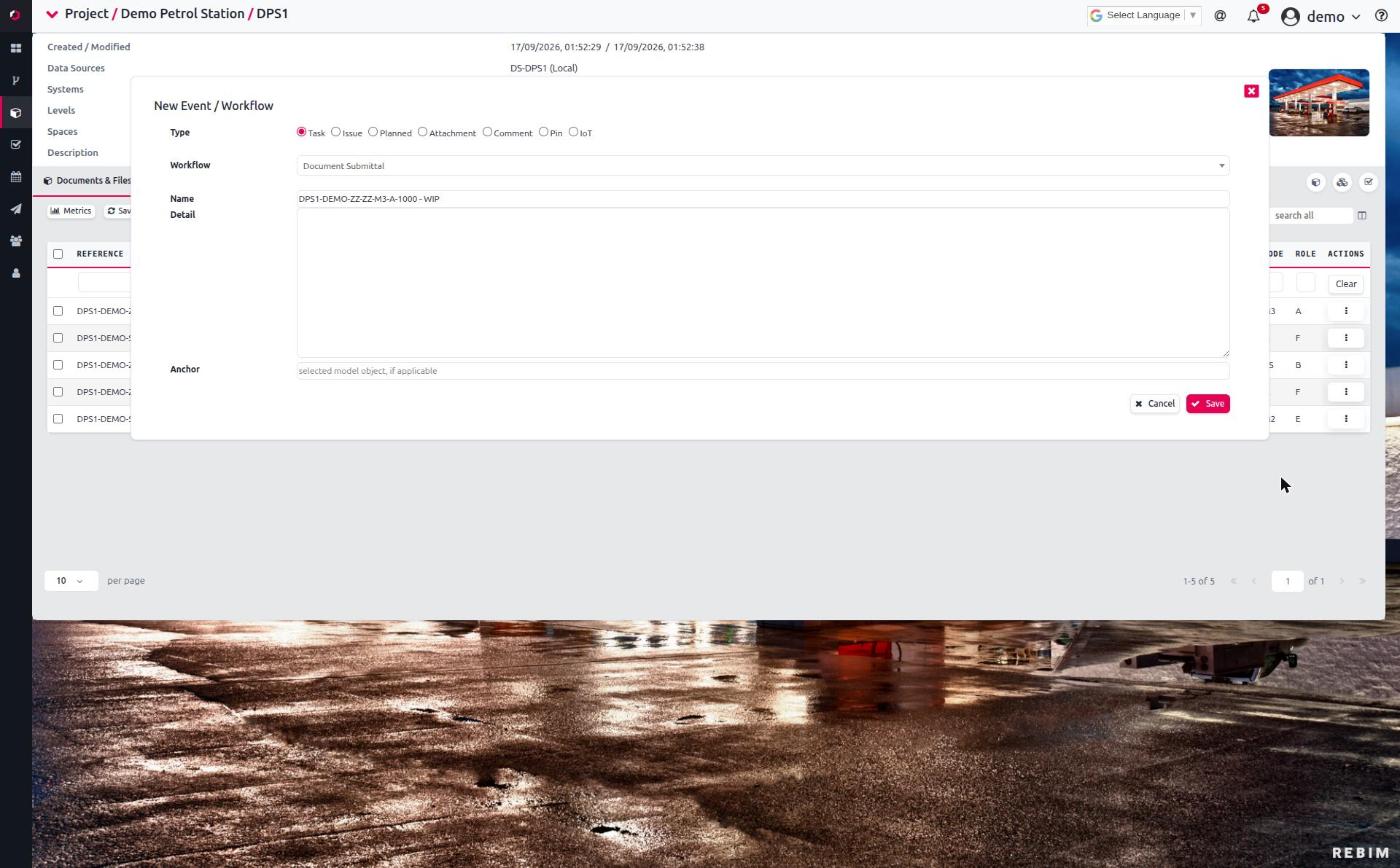
From the user side:
- Open a document → kebab menu → "Create Workflow" (see ACTIONS, planned).
- Pick a workflow definition. The picker filters by:
- Tenancy (only workflows in your tenancy).
only_show_if_exclusive(only shows if the project'ssingle_exclusive_workflowmatches).locked_to_systems(only shows if the document's system is in the workflow's list).- The start transition fires immediately — event is created in
start_transition.status_to. Anysets_start_date,sets_due_date,force_edms_statuson the start transition apply. - Notifications fire per the start transition's
notify_*flags.
For ad-hoc events: same kebab → "Create Event" (no workflow selection). The event is created in no particular status.
Workflow auto-naming (optional, per-install)¶
When a workflow is created against a document (bulk uploader, the bulk
"Create Workflow" action, or the New-Workflow modal), how it's named depends on
the Workflow auto-naming global preference (misc__workflow_auto_name):
- Off (default): legacy naming —
"<workflow name> : <document name>". - On: consistent naming —
"<document reference> - <document status>", where the status is the document's own status / ISO suitability code (e.g.EUS-MGS-…-0001 - S5 - Suitable for Review and Acceptance by the Appointing Party) — the purpose of the upload — not the workflow's internal start status. So every workflow on a document reads the same way on the tables and in notification emails.
Force-status exception: if the workflow has a force EDMS status set
(WorkflowWorkflow.force_edms_status), the document is moved to that status
the instant the workflow is created — so the name uses the forced status
rather than the document's (about-to-change) current one, keeping it accurate.
It's opt-in — existing installs are unchanged until an admin turns it on.
Advancing an event¶
- User opens the event (table → click row → modal, or Explorer → event detail).
- Available transitions appear as buttons — only the ones the user can perform per their role (per ROLES).
- Click a transition → confirm → transition fires. Status updates, dates auto-set per the transition's flags, notifications send, status_history appends.
If hold_for_attachment is set and the event has no attachment, the
transition button is greyed out with a tooltip.
If send_transmittal is set, taking the next transition opens the
Transmittal form pre-loaded with the workflow's document. The status
change is only committed once you send the transmittal — cancel the form
and the event stays put.
Completing an event¶
A transition with sets_complete_date=True AND (often) is_end=True
fires the completion. workflow_complete becomes True, the event
enters the completion-gating visibility regime above.
Reopening a completed event requires admin intervention — there's no
user-facing "reopen" button. Manually flip workflow_complete=False
and reset status via the admin panel.
FRA workflows¶
WorkflowWorkflow.is_fra=True flags a workflow as Fire Risk
Assessment. This surfaces it in:
- The FRA dashboard (separate compliance tab if
UserProfile.show_frais True for the user). - The FRA snapshot / "bake" report mechanism.
FRA workflows behave like any other workflow otherwise — same statuses + transitions + role machinery. The flag just controls which dashboard / report surfaces they appear in.
WorkflowStatus.exclude_from_fra_baked_reports is the per-status flag
that excludes a given status from FRA snapshots (see layer 5).
Practical operations¶
Add a new workflow¶
Admin panel. Use the workflow designer for anything non-trivial.
Add a transition to an existing workflow¶
Admin panel → Workflow Transitions → Add. Set workflow, from, to, role rules. Existing events on this workflow will pick up the new transition the next time they're rendered (no migration needed — transitions are resolved at view time).
Lock a workflow to specific systems¶
Admin → Workflows → (pick) → locked_to_systems → select.
Effect: the workflow stops appearing in the workflow picker for documents not in those systems. Existing events on the workflow keep running normally.
Mark a workflow exclusive to a project¶
- Admin → Workflows → (pick) → tick
only_show_if_exclusive. - Admin → Projects → (pick project) → set
single_exclusive_workflowto this workflow.
Effect: the workflow only appears in the picker for documents in this specific project.
Bulk-complete events¶
REBIM doesn't ship a bulk-complete UI. The practical approach:
- Per-event: open + transition the terminal transition.
- Many at once: admin panel + the queryset filter, then edit each
(
workflow_complete=True,status=<final status>,complete_date=today). - For automation, prefer firing a transition via the API (which invokes the signal handlers + notifications correctly) over direct ORM updates (which skip the signals).
Troubleshooting¶
| Symptom | Likely cause | First check |
|---|---|---|
| Workflow doesn't appear in the picker for a document | locked_to_systems doesn't include the doc's system |
The workflow's locked_to_systems M2M |
| Workflow doesn't appear in the picker for a project | only_show_if_exclusive=True but project's single_exclusive_workflow doesn't match |
Project's single_exclusive_workflow |
| Transition button greyed out for a user with the right role | hold_for_attachment=True + event has no attachment |
Event's attachment + the transition's hold_for_attachment flag |
| Transition button missing entirely | User matched a readonly_roles / commentonly_roles category — sees but can't transition |
The transition's role fields. See ROLES. |
| Due date is wrong after a transition | start_to_due_days mis-set OR use_working_days toggled unexpectedly OR sets_due_date_using_system is winning over the transition's own setting |
The transition's date flags + the document's system's workflow_start_to_due_days |
| Completed events disappeared from a user's view | limit_completed_visibility doesn't include their discipline AND completed_visible_to_any_role=False |
The workflow definition's two completion-visibility fields + user's disciplines |
| Status colour wrong in the table | WorkflowStatus.css_class mismatch |
Status admin form |
| New transition added but existing events don't show it | Browser cache OR status mismatch (the new transition's status_from doesn't match the event's current status) |
Check the event's current status vs the transition's status_from |
is_end=True transition fired but event not "complete" |
sets_complete_date not set on that transition — is_end alone doesn't auto-complete |
The transition's sets_complete_date flag |
| FRA workflow events not in FRA dashboard | The user has UserProfile.show_fra=False |
User's profile flags |
| SLA badge not showing on an event | The event has never had an SLA (no duration_target_hours on any transition it's taken), OR the Transition SLA column is unticked. (A complete event, or one now in a no-SLA step, still shows the PAST result if it ever had one.) |
The transition's duration_target_hours; the checkbox above the table |
| SLA badge exists but the countdown looks stale | It's a snapshot from when the table loaded — it doesn't tick live | Re-enter the tab / refresh the report to recompute |
| Existing events show no SLA badge after adding a target | current_status_since is only stamped on transitions from now on (no backfill) |
The event picks up an SLA the next time it's transitioned |
For developers¶
This page is for users and admins. Implementation pointers:
- Models:
apps.workflow.models—WorkflowWorkflow,WorkflowStatus,WorkflowTransition,WorkflowEvent,WorkflowFraReport. - Visibility evaluation: mostly client-side
(
apps_workflow.js: can_user_perform_transition,is_owner_or_assignee). - Transition firing:
apps.workflow.signals.py— post-save signal handlers fire when an event's transition changes, writeLivefeedNotificationrows, queue emails viaemail_user(), update dates / status_history per the transition's flags. - Transition SLAs / timing:
duration_target_hoursonWorkflowTransition+current_status_sinceonWorkflowEvent(stamped in the signal). The live badge is computed client-side (app_core.js: sla_compute/sla_badge_html); the durable per-transition log isWorkflowTransitionLog. Design:devdocs/WORKFLOW-TIMING-PLAN.md. - Workflow designer:
core/admin.pymounts the designer view; templates live intemplates/default/admin/workflow_designer.html. - FRA reports:
apps.workflow.models.WorkflowFraReportfor the baked snapshots. See FRA.
A practical consequence (same as for VISIBILITY / ROLES): the backend may serve event rows that the frontend then hides. Logs showing "event served" doesn't mean "user saw it." Reproduce visibility issues end-to-end via the frontend.
See devdocs/ for codebase-level material.