Actions (kebab menus)¶
Part of the user manual. Related: VISIBILITY · PERMISSIONS · ROLES · EDMS · WORKFLOWS · PROJECTS · CONTACTS.
Most tables in REBIM show a kebab (⋮) menu in the rightmost column. Click it and a dropdown of actions appears — but the items shown depend on the row's state and the user's permissions/roles.
This page is the cross-cutting reference for every kebab action: what it does, where it appears, and when it's visible. If you see a menu item and aren't sure what it does — or expected one that isn't showing — this is the page to check.
For background on the underlying mechanisms (permissions, roles, check-out, etc.) follow the cross-links. This file is reference-grade; the deep-dive lives elsewhere.
How to read this page¶
Each tab gets its own section with a table of actions. Columns:
- Action — the menu label as the user sees it.
- What it does — one sentence on the outcome.
- Visible when — the conditions for the action to appear in the menu at all.
A blank "Visible when" means always shown for any user who can see the row.
Common conditional shorthands used below:
- superuser — Django superuser (typically the SaaS admin).
- project_admin —
ProjectPeople.project_admin=Truefor this user on the active project. - owner — user is the row's
ownerFK (DataModel.owner — whoever created the row). - edit_rel — shorthand for
superuser OR project_admin OR owner. The frontend check isapps_core_callback.project_data_edit_checkinapp_core.js(grep forproject_data_edit_check).
EDMS Documents kebab¶
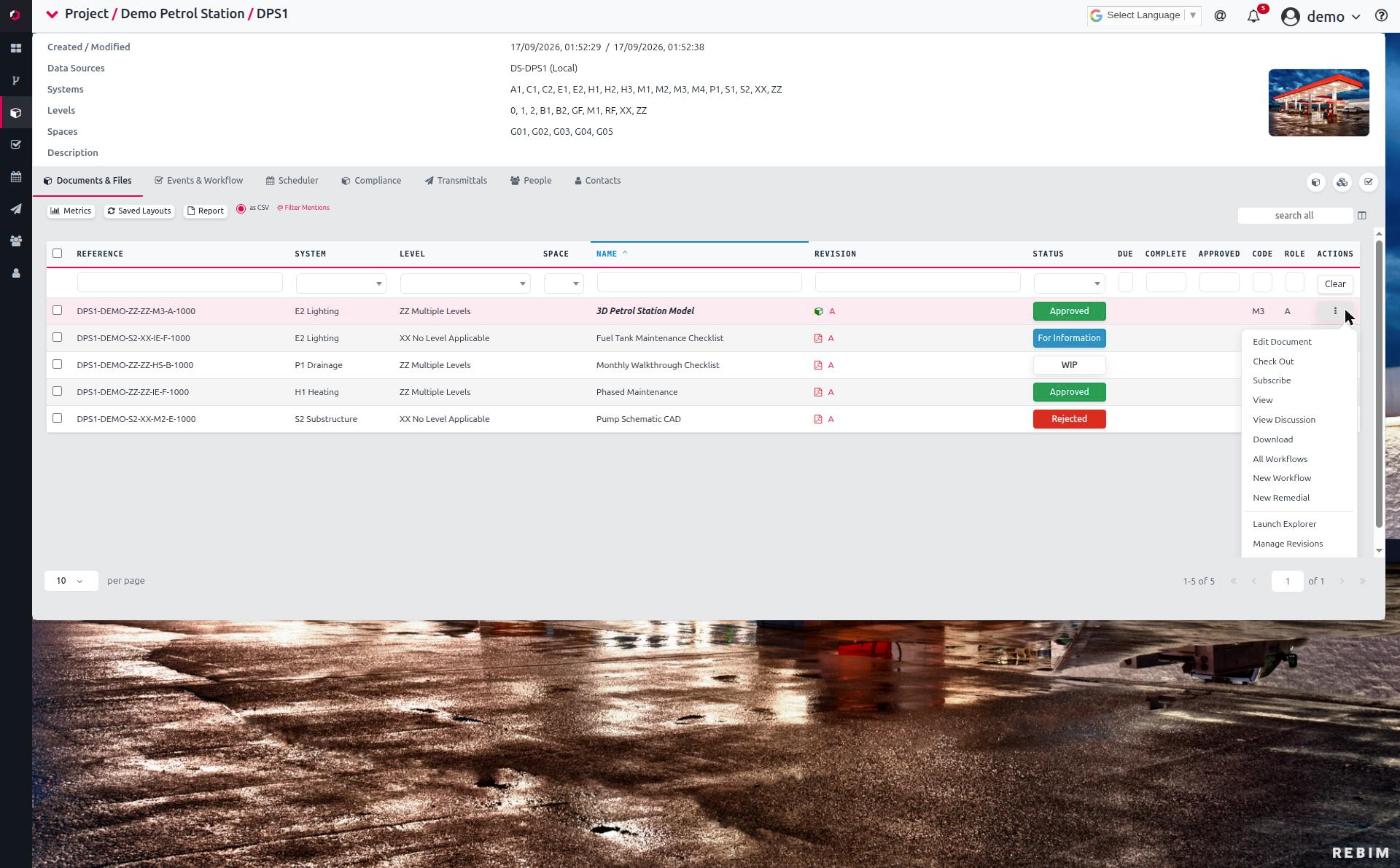
Largest action set. Some items disappear when a document is checked out by another user (see Check-out interaction below); some only appear in Compliance mode; some require a specific file type.
| Action | What it does | Visible when |
|---|---|---|
| Edit Document | Open the document detail form for metadata edit. | Always — except suppressed if checked out by another user (non-admin viewer). |
| Check Out | Lock the document to the current user. See EDMS § Check-out. | Document is NOT currently checked out. |
| Check In | Release the check-out lock. | Document IS checked out, AND (you hold the lock OR you're a project_admin/superuser — used for recovery). |
| Subscribe | Add yourself to the document's subscribers M2M for notifications. See EDMS § Subscriptions. |
You're NOT currently subscribed. |
| Unsubscribe | Remove yourself from subscribers. |
You ARE currently subscribed. |
| View | Open the document in the appropriate read-only viewer (PDF.js, image viewer, 3D viewer). | Active revision has a file_upload. |
| View Discussion | Open the explorer's document discussion thread. | Always. |
| Download | Direct download of the active revision file. | Active revision has a file_upload (or SharePoint URL for SP-sourced). |
| Download Secondary | Download the revision's secondary file (e.g. native paired with PDF). | Active revision has a secondary_file. |
| All Workflows | Jump to the workflow table filtered to this document's reference. | Always. |
| New Workflow | Launch the workflow quick-create wizard for this document. | Active revision exists. |
| New Remedial | Launch the bulk-upload-against-a-document flow (used to add follow-up evidence). | Active revision exists OR doc has federated sub-models. |
| Mark Complete | Set the active revision's complete date to today. |
Compliance mode AND active revision NOT complete AND document has no associated workflow events. |
| Mark Incomplete | Clear the active revision's complete date. |
Compliance mode AND active revision IS complete. |
| Launch Explorer | Open the document in Explorer — its events tree + (for 3D models) the element navigator. | Active revision exists OR doc federates with others. |
| Make Default for Project | Set this doc as the project's default_model_pk. |
Active revision OR federation exists, AND (superuser OR project_admin). |
| Manage Revisions | Open the revisions form to add / edit revision metadata or upload a new one. | Always — except suppressed if checked out by another (non-admin viewer). |
| View History | Open the document history modal (DataHistory rows for this doc). | Always. |
Check-out interaction¶
If the document is checked out by another user, and the viewing user is NOT that lockholder AND NOT a project_admin/superuser on the project, the following actions are stripped from the kebab:
- Check Out / Check In
- Edit Document
- New Workflow
- New Remedial
- Mark Complete / Mark Incomplete
- Manage Revisions
- Make Default for Project
The remaining actions (View, View Discussion, Download, All Workflows, View History, Subscribe/Unsubscribe, Launch Explorer) still work — read-only access is preserved.
Project admins and superusers always see the full set, including Check In (used to recover an abandoned lock).
Compliance mode additions¶
When the EDMS tab is in Compliance mode (the second tab, named
per SECOND_EDMS_TAB), two inline buttons appear next to the
kebab — they're not part of the dropdown:
| Inline button | What it does | Visible when |
|---|---|---|
| Add New | Open the revisions form to upload a NEW revision. | Compliance mode AND (not checked out by another non-admin viewer). |
| Edit Current | Open the revisions form to edit the CURRENT active revision's metadata. | Same. |
These shortcut the most common compliance-tab actions (rapid revision turnover) without making the user open the kebab.
Workflow Events kebab¶
Sits on the rightmost column of the Workflows table. Has a "locked" mode (workflow has a transition currently held for an attachment, OR the user can't act on the current state).
| Action | What it does | Visible when |
|---|---|---|
| Edit Event | Open the event detail form. | NOT locked. |
| New Related Event | Start a new event linked to this one (related_event FK). |
Event has NO existing related_event parent (limit to one level deep). |
| View Discussion | Open the explorer's discussion thread for this event. | Always. |
| Submit Comment Sheet | Open the discussion + auto-fill "Comment sheet attached". For commentonly_role users. | User matches the workflow transition's commentonly_roles. |
| Submit No Comment | Open the discussion + auto-fill "No Comment". For commentonly_role users. | User matches the workflow transition's commentonly_roles. |
| [Transition name] (dynamic) | Perform the workflow transition (advance the event). The action name matches the transition's display name (e.g. "Approve", "Reject"). | Event has a workflow + status, AND user can perform this specific transition per ROLES. One entry per eligible transition. |
| Create Schedule | Create a scheduled recurring trigger for events like this. | Event has a workflow + status AND user is staff/superuser/project_admin. |
Locked mode¶
When the row is "locked" (workflow is holding for an attachment that hasn't been added, typically), the kebab collapses to just:
- New Related Event (subject to the same one-level-deep rule)
- View Discussion
- Create Schedule (subject to the same staff/admin gate)
Edit Event and the transition buttons are stripped.
Transitions — how they show¶
The dynamic transition entries come from
apps_workflow_callback.get_next_transition_statuses(workflow_pk, status_pk).
Each candidate transition is then filtered through
can_user_perform_transition (see ROLES) — only those the
user is authorised to perform appear.
If a transition has hold_for_attachment=True and the event lacks
the required attachment, the transition triggers
popup_workflow_transition (which prompts for the attachment) rather
than apply_workflow_transition.
Workflow Transmittals kebab¶
Sits on the rightmost column of the Transmittals table.
| Action | What it does | Visible when |
|---|---|---|
| Duplicate | Create a copy of this transmittal as a new draft. | Always. |
| Recall Transmittal | Mark the transmittal as recalled (notifies recipients). See PERMISSIONS § Workflow transmittals. | NOT already recalled AND (you're the transmittal owner OR superuser OR project_admin). |
| Cancel Recall | Undo a recall (transmittal returns to active state). | IS recalled AND (owner OR superuser OR project_admin). |
Project People kebab¶
Sits on the rightmost column of the People tab.
| Action | What it does | Visible when |
|---|---|---|
| Edit the Relationship | Open the ProjectPeople form — change disciplines, role_leader, project_admin flags. | edit_rel (superuser OR project_admin OR row owner). |
| Edit the Contact | Open the underlying Contact form — change name/email/company/etc. | edit_rel. |
A user without edit_rel sees the kebab but with no items — visually empty dropdown. Worth knowing as a UX caveat.
Contacts kebab¶
Sits on the rightmost column of the Contacts tab.
| Action | What it does | Visible when |
|---|---|---|
| Edit the Contact | Open the Contact form. Triggers the auto-populate behaviour on site_login selection — see CONTACTS § CREATE / EDIT auto-populate. |
edit_rel. |
| Add to Project | Open the ProjectPeople form, pre-filled with this contact, to add them to the active project. | edit_rel. |
Same UX caveat as Project People — without edit_rel, the kebab is visually empty.
Scheduler kebab¶
See SCHEDULER for what scheduled events are + how recurrence works.
Sits on the rightmost column of the Schedule tab.
| Action | What it does | Visible when |
|---|---|---|
| Edit | Open the scheduled event form. | User is staff OR superuser OR project_admin. |
Read-only by default for everyone else — view via the table but no edit affordance.
"I don't see an action I expect"¶
Walk this in order:
- Permission to view the underlying model at all?
Without
view_Xyou wouldn't see the row, but partial permissions exist (e.g. view-but-no-edit). Check Django groups. See PERMISSIONS. - Visibility on the specific record? If the row is in your table but actions are missing, the user passed visibility but not the per-action permission. See VISIBILITY.
- Document checked out by someone else? Strips most edit-side EDMS actions. See Check-out interaction above + EDMS § Check-out.
- Role mismatch on a workflow transition? The transition appears as a kebab item only if the user can perform it. See ROLES.
- Compliance mode for inline buttons? "Add New" / "Edit Current" inline buttons only appear in the compliance sub-tab.
- Locked workflow event? Strips most action-side kebab items. See Workflow Events › Locked mode.
- edit_rel gate (People / Contacts)? Without owner/project_admin/superuser, the People + Contacts kebabs render empty.
Legacy kebabs (not in scope)¶
Two files exist for historical integrations and are explicitly marked legacy:
apps/edms/static/edms/js/legacy_app_sharepoint.js— old SharePoint integration view.apps/edms/static/edms/js/legacy_app_viewpoint.js— old Viewpoint integration view.
These render kebabs in their own contexts but are off the main user flow. Not documented here. If they re-enter active use, audit + add a section.
For developers¶
This page is for users and admins. Implementation pointers:
- Kebab renderers live inside DataTable column
rendercallbacks per app. To find each,grep -n 'dropdown-kebab-pf'in: - EDMS Documents:
apps/edms/static/edms/js/app_edms.js(the main kebab + a separate compliance-mode inline-buttons block immediately above it). - Workflow Events:
apps/workflow/static/workflow/js/app_workflow.js— twodropdown-kebab-pfblocks back-to-back: the locked-mode branch first, the main kebab second. - Workflow Transmittals: same file, the third
dropdown-kebab-pfblock (transmittals render function). - Project People:
apps/directory/static/directory/js/app_people.js. - Contacts:
apps/directory/static/directory/js/app_contacts.js. - Scheduler:
apps/schedule/static/schedule/js/app_schedule.js. Line numbers omitted deliberately — they drift fast and thedropdown-kebab-pfselector is unique enough to grep. - Shared visibility helpers:
apps_core_callback.project_data_edit_check(inapp_core.js) — theedit_relgate used by People + Contacts.apps_workflow_callback.can_user_perform_transition— transition-role evaluation for the dynamic workflow transition entries.apps_workflow_callback.is_owner_or_assignee— companion gate.- When adding a new kebab item: update this page + the relevant feature doc. Drift between code and ACTIONS.md is the most likely failure mode — a user-facing reference goes stale silently. CI doesn't enforce this; humans do, on PR review.
See devdocs/ for codebase-level material.