EDMS — Documents¶
Part of the user manual. Related: VISIBILITY · PERMISSIONS · TENANCY · PROJECTS · WORKFLOWS · ROLES · NOTIFICATIONS · CONTACTS · ACTIONS.
EDMS = the Electronic Document Management System. The Documents tab in REBIM. It holds every drawing, report, spec, model, photo, PDF, and miscellaneous file a project tracks, with versioning, metadata, status workflow, and integration with the markup + viewer + stamper tools.
This page covers what a document is, how revisions work, the check-out / check-in lock, stamps, subscriptions, federation (multi-document linking, used for 3D models), and how the tools integrate.
TL;DR¶
- Every document has a single active revision plus zero-or-more inactive (historical) revisions. The active revision is what's shown / downloaded / launched in tools.
- Check-out locks the document to one user. Other users see it but most write actions are blocked. Project admins + superusers override.
- Document status is separate from workflow event status.
Workflows can sync the document status via
force_edms_statuson their transitions — see WORKFLOWS. - The Compliance sub-tab (renamed via
SECOND_EDMS_TABsetting — default "Compliance") is just a filtered view of documents withis_compliance=True. - Stamps are predefined templates applied via the v2 stamper tool, with optional user / date / time append and revision-label prefix/suffix overrides.
- Subscribers opt-in to per-document notifications regardless of role rules.
- Federation (
federate_with) is the multi-document link used for 3D model assemblies — one model references several sub-models. - The markup / viewer / stamper / 3D viewer / image editor tools all run as iframes; output flows back as new revisions.
The two EDMS tabs¶
Each project has a Documents tab and a second sub-tab that
filters to compliance documents only. The second tab's name is
configurable per install via SECOND_EDMS_TAB in settings — common
values are Compliance (default) and Capital Works.
Mechanically:
- Documents tab — all documents in the project (subject to visibility filters; see VISIBILITY layers 1-3).
- Second tab (Compliance / Capital Works / etc.) — same table,
same columns, filtered to
is_compliance=True.
The two tabs share the underlying DataTable. The difference is
client-side state: column visibility, column order, and which subset
is being shown. See EDMS-TAB-CLEANUP-PLAN.md (in devdocs/ —
archived) for the pre-BYOP work that disentangled the two tabs'
state management.
What an EDMS document is¶
An EdmsDocument has these core attributes:
| Attribute | Purpose |
|---|---|
name |
Display name — typically the document title |
reference |
Identifier — typically a coded reference like "ARC-001-A1-DR-1001" |
sequence (FK) |
The auto-numbering sequence this reference came from. See Document sequences. |
data_source (FK) |
The data source the document lives in. See PROJECTS § Data sources. |
active_revision (FK) |
The current revision. What gets shown / downloaded / launched. |
inactive_revisions (M2M) |
All previous revisions. Read-only historical record. |
status (FK) |
Document status — see Document statuses. |
classification, document_type (FK) |
Categorisation. RIBA stage, drawing type, etc. |
system, level, space, discipline (FK) |
Per-project taxonomies. See PROJECTS § Per-project taxonomies. |
approval_date |
Date the document was formally approved |
federate_with (M2M to self) |
Multi-document federation. See Federation. |
checked_out_by (FK to User) |
Currently checked out by this user (or null). See Check-out / check-in. |
subscribers (M2M to User) |
Users opted-in to receive notifications on this doc. See Subscriptions. |
is_compliance |
Compliance-doc flag. Drives the second-tab filter. |
in_qrcode |
If True, the document is encoded as a QR code on a printed sheet (special integrations only). |
json_custom_fields |
Free-form per-tenant custom fields stored as JSON. See Custom fields. |
sharepoint_uuid |
Set when the document is mirrored from a SharePoint data source. Read-only. |
tenants (M2M) |
Tenancy (TENANCY). |
Revisions¶
Every document is versioned. Each EdmsDocumentRevision is one
version. The document has one active_revision (current) plus a list
of inactive_revisions (historical, ordered newest-first).
Revision attributes¶
| Attribute | Purpose |
|---|---|
revision_label |
The version identifier — typically "P01", "P02", "C01", "T01", "M-001" etc. Conventions vary by org. |
file_upload |
The actual file (for Local data sources). |
secondary_file |
Optional second file — e.g. native + PDF pair, or a JSON metadata sidecar. |
tertiary_file |
Optional third file, uploaded and managed the same way as secondary_file (Manage Revisions, bulk upload, kebab download, row icon). Can be attached to transmittals (send_tertiary_files). |
collated_comments |
Optional review-comments file: the collated review comments for this revision. Captured at a workflow gate (collect_collated_comments, see WORKFLOWS § Transitions), not uploaded directly. Surfaces in Manage Revisions, can be attached to transmittals (send_collated_comments), and is downloadable by anyone with the document — without needing View Discussion access. |
mime_type |
MIME type of the upload. Used by the tool launcher to pick the right viewer. |
note |
Free-text revision notes — "what changed in this revision." |
issued |
Date the revision was formally issued |
next_due |
Next due date — when the next revision is expected |
complete |
Date marked complete (separate from issued; used in compliance workflows) |
contractor (FK to DirectoryCompany) |
Which contractor authored this revision. Surfaces in the compliance dashboard's contractor column. |
revision_version, revision_filename |
SharePoint-mirrored fields. Read-only. |
archived_metadata |
Snapshot of doc state at the time this revision was committed. Read-only. Used for historical reporting. |
tenants, owner |
Standard DataModel fields. |
Configurable display labels¶
Some field display labels can be renamed per install via global preferences (Admin → Global
preferences, section misc) without changing the underlying field. Defaults reproduce the
standard wording, so nothing changes until an admin edits them; an override updates the label
everywhere it shows on the frontend (Manage Revisions, History, the documents-table column /
column-chooser, and the row paperclip tooltip + download menu).
| Preference | Default | Renames | Example override |
|---|---|---|---|
misc__label_tertiary_file |
Tertiary file |
the tertiary_file label |
CC Response |
misc__label_issued |
Issued |
the issued label |
Submitted |
misc__label_revision_created |
Revision Created |
the active-revision created/upload-date column (below) | Actual Submission Date |
These sit alongside the existing misc__status_history_label (default History).
Revision Created column. The documents table has an optional column showing the active
revision's created (upload) date — labelled by misc__label_revision_created. It's off by
default; turn it on per user via the table's column-chooser (it persists in that browser, and in
named Saved Layouts). Like the other date columns it gets a date-range filter in the search row. All are served
through one channel — core.utils.get_ui_labels() → the ui_labels dict in template contexts
({{ ui_labels.<key> }}) and the matching ui_labels JS global — so adding another configurable
label is one preference plus one line in that helper.
Active vs inactive — how a new revision happens¶
The flow:
- The user opens the document (kebab → View / Markup / etc.).
- They edit / mark up / stamp via a tool. Tool runs in an iframe.
- The tool commits the edited file back. The commit creates a new
EdmsDocumentRevisionrow, sets it as the document'sactive_revision, and moves the prior active revision intoinactive_revisions. - The new revision inherits issued/contractor/etc. from the tool's commit context (which carries the user, date, and any stamp the user applied — see Stamps).
Direct "upload a new revision" is also available via the document edit form — bypasses the tool, lets a user manually upload a file as the new active revision.
Post-save actions (Manage Revisions)¶
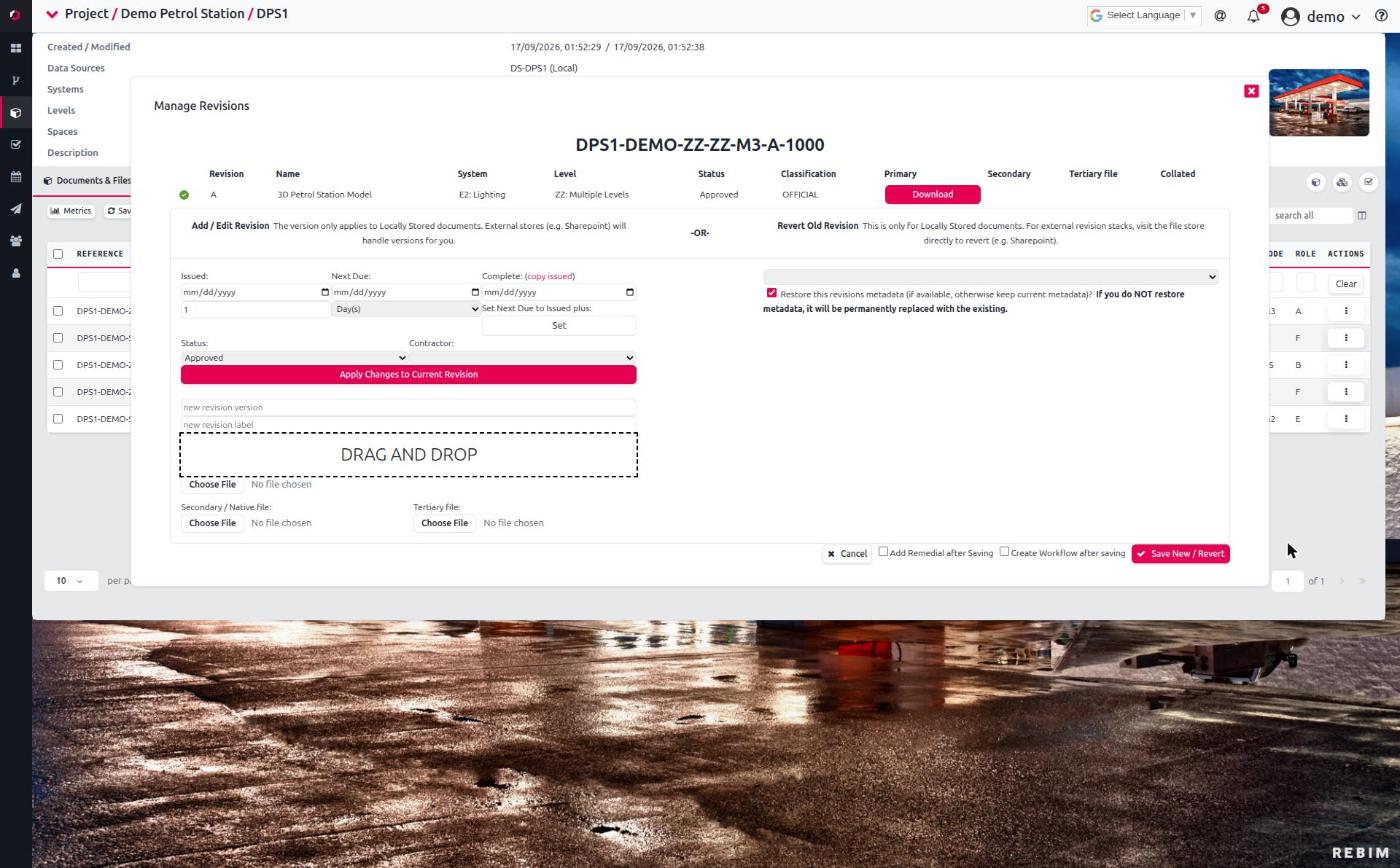
The Manage Revisions form has two optional, mutually-exclusive tick-boxes next to Save, each choosing what happens after the revision is saved:
- Add Remedial after Saving — reopens the bulk-upload flow to add a remedial file (needs another file).
- Create Workflow after saving — opens the New-Workflow modal
pre-filled for this document, so you pick a workflow/status and save
a workflow against it in one go. When Workflow auto-naming
(
misc__workflow_auto_name, see WORKFLOWS) is on, the workflow name is pre-filled as<document reference> - <start status>and stays editable.
Ticking one unticks the other; leaving both unticked just returns to the documents/compliance view as before.
Which box is pre-ticked is set per-install by the
misc__revision_post_save_default preference:
| Value | Effect |
|---|---|
none (default) |
Nothing pre-ticked — exactly as before. |
remedial |
Pre-tick "Add Remedial after Saving". |
workflow |
Pre-tick "Create Workflow after saving". |
The user can always change the selection before saving, so this only sets the starting default.
Inactive revisions are read-only¶
Once a revision is inactive, its file + metadata are frozen. Viewing an inactive revision opens it read-only in tools. To "edit" it, either:
- Make the change against the active revision (the usual path).
- Use the admin panel to revert (rare — sets the inactive revision as active again). Skipped here; talk to a superuser.
Check-out / check-in¶
The single most-impactful action on a document. Locks editing to one user until they check it back in.
What check-out does¶
When user X checks out a document:
document.checked_out_by = Xis set.- For every other user (except project admins / superusers on the same project):
- Document editing is locked — the edit form opens read-only.
- Workflow event editing is locked for events whose
content_documentis this doc. Including transitions. - Tool launches enter read-only mode — markup, stamping, 3D-model annotation all disabled. Read-only viewing still works.
- Explorer respects the lock — can't add events, transitions, or edits to this document.
- For user X themselves: full edit + transition + tool access.
- For project admins + superusers in the project: override — they keep full edit rights even though someone else holds the lock. Used for recovery scenarios.
What check-out does NOT do¶
- Does not hide the document. It's still visible in the table to everyone who has visibility on it (see VISIBILITY).
- Does not stop notifications. Workflow events still fire emails; the lock just blocks acting on them.
- Does not prevent download — users can still download the active revision read-only.
- Does not prevent comment / discussion — the discussion thread on a workflow event using this document stays open.
How to check out¶
Open the document → kebab menu → Check Out. Available when:
- The document is NOT already checked out (or it's checked out by you, OR you're a project admin / superuser — in which case the kebab also offers Check In to release the lock).
- You have edit permissions on documents.
The system marks the document as checked out by you. Other users see the lock immediately on next data load.
How to check in¶
Open the document → kebab menu → Check In. Available when:
- You're the user who checked it out, OR
- You're a project admin / superuser in the project (used to recover abandoned check-outs).
The system clears checked_out_by. Other users regain edit rights
immediately on next data load.
Recovery from an abandoned check-out¶
If a user has a document checked out and is no longer available (left the org, on extended leave, etc.):
- A project admin or superuser opens the document.
- Their kebab shows Check In despite not being the lock-holder.
- Click Check In → lock released.
There's no "force unlock" separate from "check in." Project-admin authority over the project is what enables the override.
Edge case: the default model¶
The project can have a default_model_pk — the 3D model used as the
project's primary viewer target. The check-out flow for this document
includes a guard: attempting to check out the default model triggers
a warning ("You cannot check out the default model!"). The default
model is meant to be the shared anchor for federation; locking it
would break other users' federation views.
Document statuses¶
EdmsDocumentStatus is the status applied to a document — Draft,
Issued, For Approval, Approved, Rejected, Stage 1 Complete, etc. Per
tenancy.
| Attribute | Purpose |
|---|---|
name |
Display name |
css_class |
Bootstrap classes for the status button rendering |
is_default |
When creating a document, this status is pre-selected |
is_compliance |
If True, documents with this status auto-trigger the is_compliance=True flag (compliance docs surface in the second tab) |
overdue_compliance, compliance_complete |
Compliance dashboard markers — used for "overdue" red / "compliant" green colouring on the dashboard's status counts |
Document status vs workflow event status¶
These are two different things:
- Document status =
EdmsDocument.status— the document's own status. Shown in the document table's Status column. - Workflow event status =
WorkflowEvent.status— the workflow event's status. Shown in the workflow event table's Status column.
They CAN be coupled. A WorkflowTransition has a force_edms_status
field — when set, performing that transition also sets the document's
status to this value. This is how a workflow can pull a document's
status forward as the workflow progresses.
But the two are independent in the model. You can change a document's status directly via its edit form without firing any workflow event.
See WORKFLOWS § Transitions for the workflow side.
Compliance documents¶
The EdmsDocument.is_compliance boolean controls whether the document
appears in the second EDMS tab (Compliance / Capital Works / etc. —
the name is set per install via SECOND_EDMS_TAB).
How a document becomes compliance:
- Manually — tick "Is compliance" on the document edit form. The
label in the form is dynamically renamed to match
SECOND_EDMS_TAB("Is Capital Works" when the setting is "Capital Works"). - Automatically — when the document's status is one with
is_compliance=True. Some statuses are designed for compliance workflows and auto-tag any document landing in them.
Compliance docs:
- Show in both tabs (Documents AND second tab) but the second tab filters to ONLY compliance docs for a focused view.
- Drive the Compliance dashboard
report — the cross-project view that
rolls up compliance docs' statuses by system, contractor, project,
etc. See
BYOP-PLAN.mdPhase 3 indevdocs/for the BYOP wiring on that report.
To remove compliance status: untick the flag on the document edit form (or change the document's status to a non-compliance one if auto-flagging is in play).
Stamps¶
Predefined stamp templates — small markup elements applied via the v2 stamper tool. Think "DRAFT", "APPROVED", "FOR REVIEW", "REV B" — canned text labels that an admin can pre-configure for one-click application.
Stamp attributes¶
| Attribute | Purpose |
|---|---|
stamp_text |
The literal text content of the stamp |
add_date |
Append today's date when the stamp is applied |
add_time |
Append the current time |
add_user |
Append the current user's first + last name |
date_time_on_new_line |
Visual: put date / time on their own line below the stamp text. Ignored unless add_date or add_time is on. |
user_on_new_line |
Visual: put the user's name on its own line. Ignored unless add_user is on. |
default_rotation |
Drop the stamp at this rotation (degrees, can be negative). Blank = drop upright. |
default_colour |
Hex colour like #FF0000. Blank = use the toolbar's current colour. |
default_font_size_mm |
Font size in mm. Blank = use the toolbar's current size. |
revision_label_prefix |
Override the default "M-" prefix on the auto-generated revision label when this stamp is the most-recently-applied stamp at commit time. Blank = use "M-". |
revision_label_suffix |
Appended after the revision label. Blank = no suffix. |
tenants |
Tenancy |
How stamps apply¶
- User opens a document in the v2 stamper tool.
- The stamper iframe shows the available stamps in a menu (filtered by tenancy).
- User clicks a stamp → it drops onto the canvas at the chosen location. Date / time / user appended per the stamp's flags.
- User adjusts placement, rotation, size if needed. The stamp's
default_*values pre-populate the toolbar but the user can override. - User commits → the marked-up file becomes a new revision (see Revisions).
- If the stamp had a
revision_label_prefix/_suffix, those override the default revision-label generation on this commit.
Which tools use stamp prefix/suffix¶
Only the stamper tool path consults revision_label_prefix /
_suffix. The other tools — painter, viewer-painter, auto-stamper —
keep their hardcoded M- prefix and ignore stamp-defined overrides.
This is intentional: stamp metadata only applies in flows where the
user picked a stamp.
Carrying side files to the stamped revision¶
A stamp commit creates a new revision holding only the stamped PDF. The current revision's side files — secondary file, tertiary file (shown under its configured label) and collated comments — would otherwise stay on the old revision, so the document's table icons and View Discussion header (which read the active revision) would stop showing them.
So when the markup tools are open, a Carry to new revision: area appears next to Commit Revision, with one checkbox per side file the current revision actually has (none shown if it has none). Each ticked box copies that file onto the new revision; the old revision keeps its own copy, visible in Manage Revisions.
- The boxes start unticked. An admin can make them start ticked
with the global preference Stamper - pre-tick "Carry to new
revision" (
misc__stamper_carry_files_default). The user can always change them before committing. - Revision details (issued, note, contractor, dates) are not carried — only the files.
- Applies to the stamper on local EDMS documents only (not SharePoint / Viewpoint, not the painter).
Backfilling documents stamped earlier¶
Documents stamped before this existed still have their side files on the pre-stamp revision. An admin can copy them forward once with:
python manage.py carry_forward_revision_files            # dry run - lists what would be copied
python manage.py carry_forward_revision_files --apply    # does it
- Dry run by default — nothing changes without
--apply. --files collated,secondary,tertiarychooses which files (default:collatedonly).- Only stamp-derived revisions are carried: the active revision's
label must be a stamp label wrapped round the older one (
M-P01fromP01,M-M-P01, or any stamp'srevision_label_prefix/_suffix). A genuinely new revision such asP02does not inheritP01's files.--anydrops this rule. - Never overwrites a file already on the active revision, so it is
safe to re-run.
--document <pk>limits it to one document.
Subscriptions¶
EdmsDocument.subscribers is an M2M to User. A user who's a
subscriber to a document gets notified on document changes
regardless of whether their role would normally route the
notification to them.
How to subscribe¶
From the document's kebab menu: Subscribe to updates. Toggle — the same menu item un-subscribes if already subscribed.
What subscribers get¶
Per NOTIFICATIONS (currently captures server-side rules; user-facing UX expansion still pending), a subscriber receives:
- A
LivefeedNotification(visible in the activity panel) when the document changes — new revision, status change, etc. - An email (via
email_user(subscriber, ...)), routed toUser.email.
Subscriptions are project-scoped via the document's project; a user who's subscribed but loses project access (e.g. removed from ProjectPeople, tenancy change) won't see the notifications anyway — the access filter still applies.
When to use subscriptions¶
- A user needs to track changes to a specific document but isn't in the relevant discipline — subscribe.
- A user wants to be alerted to a document they're not actively working on — subscribe.
- A user is the document's "owner" in a loose sense (commissioned it, etc.) — subscribe.
Don't use subscriptions as a substitute for role assignments — they're an extra layer on top, not a replacement.
Federation¶
EdmsDocument.federate_with is a self-M2M (non-symmetrical). When a
document federates with others, the 3D model viewer loads them
together as a single combined view.
Typical use¶
A project's master 3D model federates with:
- Architectural model
- Structural model
- MEP (mechanical / electrical / plumbing) model
- Each subcontractor's sub-model
The master is loaded; the viewer pulls in each federated sub-model; the user sees the assembled whole.
Direction matters¶
The relation is non-symmetrical. Document A federating with Document B does NOT imply B federates with A. This is deliberate — you typically want federation downward (master → subs) without the subs pulling in the master when opened standalone.
Editing federation¶
Document edit form → federate_with field → multi-select picker.
The picker lists this project's documents (the document form is
opened with ?project=<pk>, which EdmsDocumentDetailSerializer uses
to scope the dropdown).
federate_with was commented out historically because, unscoped, the
dropdown rendered every document in the system and DRF's
HTML_SELECT_CUTOFF (5000) silently dropped the rest — so it degraded
to an unusable text input (same root cause as the transmittal
document-picker story in devdocs/BYOP-PLAN.md). Scoping the queryset
to the current project collapses it well under the cutoff, so the field
now works directly in the form — no admin panel or typeahead needed.
The project is the unambiguous scope because, on shared-data-source
installs, one document can belong to several projects.
Tools integration¶
These document tools integrate with EDMS:
| Tool | Purpose |
|---|---|
| Viewer | Read-only PDF viewer (PDF.js). For just looking. |
| Markup (stamper / v2 stamper) | PDF markup + stamping (PDF-Lib). Commit creates a new revision. |
| Painter / viewer-painter | Image markup (TUI Image Editor). For raster files (PNG, JPG). |
| 3D Model Viewer + 2D Markup | THREE.js-based 3D model viewer + 2D screenshot markup pipeline. Screenshots push to the painter for annotation. |
| Stamper (alternate / auto-stamper) | Specialised stamping flows for non-interactive use cases. |
| Explorer | The document's inspector + navigator — a side panel showing the document's workflow events (Tasks/Issues/Pins/Transmittals) and, for 3D models, a searchable element tree wired to the 3D viewer. Where a lot of event creation / transitions / comments start. Respects the check-out lock like the others. |
How tools launch¶
User opens the document → kebab → View / View or Markup a Document / Markup. The kebab options visible depend on the mime type of the active revision (PDF gets viewer + markup; image gets painter; .ifc gets 3D viewer; etc.).
The launched tool opens in an iframe within the dashboard. It
fetches the file via authenticated URL, lets the user interact,
and on commit pushes back the modified file via API. The API
creates a new EdmsDocumentRevision with the commit.
Tool settings¶
Some tools have install-wide settings:
- The PDF stamper can be switched to "viewer only" via a setting in
settings.py— disables markup commits, leaving only read-only viewing. - The 3D viewer integrates with FusionCharts and HOOPS-style libraries for some flows.
See devdocs/TOOLS.md for the developer-facing detail on each tool's
integration.
Check-out interaction with tools¶
If a document is checked out by another user, all tool launches open in read-only mode for non-lockholders (project_admin and superuser excepted). The toolbar's commit button disappears; markup gestures are still possible but can't be saved.
Document sequences¶
EdmsDocumentSequence is an auto-numbering generator for document
references. When a document is saved with a reference ending -AUTO and a
sequence set, the -AUTO is replaced with the next number in the sequence.
Used in flows that create documents in bulk or via API where the reference
number should auto-increment.
| Attribute | Purpose |
|---|---|
start_at |
The first number issued by this sequence (e.g. 1000) |
zero_pad_to |
Pad numbers to this many digits (4 → 0001, 0042, 1000, 9999) |
share_numbering_across_sources |
Off (default): each data source numbers a given reference prefix independently. On: all data sources using this sequence pool one running number per prefix. See below. |
Per-source vs shared numbering¶
The number is tracked in EdmsUsedDocumentSequence, one current_max per
(search_string, scope_key, sequence) — where search_string is the
reference prefix (everything before the number) and scope_key is the
numbering domain:
- Off (default) —
scope_key = ds:<data source id>. Each data source runs its own counter for a prefix. This is the long-standing behaviour. - On —
scope_key = pool. Every data source using this sequence shares one counter per prefix.
Why the flag exists. With per-source numbering the same prefix used in two
data sources mints …-0001 in each — fine in isolation, but if one project
draws documents from several data sources you get duplicate references. Turning
the flag on (and pointing those data sources at the pooled sequence) makes the
prefix number once across them all, so no duplicates. Different prefixes
(EUS-MGS-… vs EUS-ACA-…) always number separately regardless of the flag.
Capacity. Pooling shares one number line where there used to be several, so
a prefix's numbers are consumed a little faster. With zero_pad_to = 4 the tidy
range is up to 9999; beyond that numbering simply continues at 5 digits
(10000) — nothing wraps or collides, the references just stop being
fixed-width. Set zero_pad_to = 5 if a pooled prefix is likely to exceed 9999
(rare — most prefixes carry enough metadata to stay small).
Sequences are admin-configured per tenancy. Most users don't interact with them directly — they just see the resulting references on documents.
Custom fields¶
EdmsDocument.json_custom_fields is a free-form JSON blob for
per-tenant custom fields. Two are configured globally via settings:
CF_CONTRACTOR_NUMBER_PK— points at the custom field used for the contractor's job number / reference (surfaces in compliance reports).CF_NOTES_PK— points at the custom field used for general notes (surfaces in the compliance dashboard's Notes column).
Custom fields themselves are defined in the DataCustomField model
(in core). They can be Number, String, Date, Boolean, or multi-select.
A tenant admin configures the fields they want; the document form
then renders them dynamically.
A custom field can be marked Mandatory (a checkbox on the field
definition in admin). A mandatory field must have a value before a
document can be saved — for Dropdown a choice must be made; for
text / number / date the field must be non-empty. Enforcement is
server-side, in EdmsDocumentDetailSerializer.run_validation(), so
it holds for the API as well as the browser form: a missing mandatory
custom field is reported in the same validation response as any missing
built-in field (e.g. name) — even when a built-in field is also
missing — each on its own line in the form's error box, so one save
attempt shows every problem at once. Bulk import writes the
JSON directly and is deliberately not gated by this, so importing
legacy data can't be blocked by a newly-added mandatory field.
A custom field can also be marked Show on bulk upload (a checkbox on the
field definition). When set, the field renders as an extra column in the EDMS
bulk uploader, one input per row (typed to the field — text / number / date /
dropdown / checkbox), and its value is submitted with each created document.
If a field is both Show-on-bulk-upload and Mandatory, the bulk uploader
requires a value for that field on every row: it validates all rows up front
and refuses to start uploading until each one is filled (so you never get a
half-finished batch). This bulk enforcement is client-side — the bulk
document-create is deliberately ungated server-side (as above), so the check is a
convenience to stop required fields being missed, not a server guarantee. Fields
not flagged for bulk (including the CF_CONTRACTOR_NUMBER_PK / CF_NOTES_PK
fields) simply don't appear in the uploader and are unaffected.
A Boolean custom field renders as a checkbox on the document form and
as a tick / cross in the document table and CSV export. Its stored value
is "true" when ticked and empty when not — which means a Boolean field
marked Mandatory must be ticked to save (the "accept the terms"
pattern): an unticked box reads as empty and is refused by the same
server-side rule as any other missing mandatory field.
Editing the JSON manually is strongly discouraged — the form serialises it correctly. The model's help text on the field is literally "do not edit manually!".
Visibility and permissions¶
For who sees which documents (visibility):
- Layer 1 (tenancy): documents carry tenants; user's tenants must intersect. See TENANCY.
- Layer 2 (project): document's data source must belong to a project the user is a member of. See PROJECTS § Project membership.
- Layer 3 (data sources): document's data source's tenants must intersect the user's. See PROJECTS § Data sources.
- Layer 5 (state): check-out limits WRITE actions for non-lockholders; visibility itself is not affected. See Check-out above.
For permissions (who can create / edit / delete documents): see PERMISSIONS § EDMS Documents. Summary: WRITE PERMISSIONS group + (check-out lock observed) + (workflow lock observed where the document has active workflow events).
Practical operations¶
Create a new document¶
- Open the project → Documents tab → "Add Document".
- Pick a data source, name, reference (or let the sequence assign one).
- Pick status, classification, type, system, level, space, discipline.
- Upload a file (becomes the first revision, labelled per your convention or via stamp prefix logic if applicable).
- Set tenancy.
- Save.
The document is now in the directory. Workflow events can be created against it; subscribers can subscribe; etc.
Upload a new revision¶
Two paths:
- Via a tool commit: open document → markup / stamp / etc. → commit. The new revision is created from the tool's output. Most common.
- Via direct upload: open document → edit → upload new file. Manually replace the active revision. Used when there's no editing involved — e.g. "got an updated PDF from the contractor, want to archive the old one."
Check out a document for editing¶
Kebab → Check Out. Now you own the lock. Edit / mark up / stamp / commit as needed. Then kebab → Check In.
Recover an abandoned check-out¶
Project admin → open the document → kebab → Check In. Lock released (even though they're not the lock-holder).
Subscribe to a document¶
Kebab → Subscribe to updates. Toggle to unsubscribe.
Mark a document as compliance¶
- Manual: edit form → tick "Is Compliance" (label may be renamed via
SECOND_EDMS_TAB). - Automatic: change the document's status to one where
EdmsDocumentStatus.is_compliance=True.
Either way, the document now appears in the second EDMS tab.
Federate documents¶
- Edit the master document →
federate_withfield → pick sub-models. - Save.
- Opening the master in the 3D viewer now loads the federated set.
Troubleshooting¶
| Symptom | Likely cause | First check |
|---|---|---|
| Document not visible to a user | Tenancy / project / data source mismatch | VISIBILITY layers 1-3 |
| Edit form opens read-only for current user | Document is checked out by someone else | checked_out_by field — confirm who has the lock |
| Transitions blocked on a workflow event for this doc | Doc is checked out (state lock) | Same |
| User checked out a doc but can't see it | Tenancy / project changed since check-out | Confirm their visibility — lock state is irrelevant to visibility |
| Commit from tool failed silently | Doc was checked out mid-session by someone else | checked_out_by field; tool session may need restart |
| Document in second tab but shouldn't be | is_compliance=True OR status has is_compliance=True |
Both fields |
| Document NOT in second tab but should be | Same — either flag missing | Both fields |
| Stamp drops with wrong revision-label prefix | Stamp's revision_label_prefix not set, OR a non-stamper tool was used |
Stamp config + which tool fired the commit |
| Subscriber not getting notifications | Subscriber lost project access since subscribing, OR User.email is invalid | Subscriber's project membership + email |
| Federated 3D model missing sub-models | Sub-models hidden from this user via tenancy / project | Sub-models' visibility for this user |
federate_with picker empty on edit form |
Picker only shows docs visible to editor in this project | Confirm the sub-models are visible to the editor |
json_custom_fields corrupt |
Someone edited the JSON manually via admin | Restore from history (DataHistory); use the form to edit going forward |
| Sequence reference duplicated | Two data sources using same sequence + same search_string with concurrent creates | Inspect EdmsUsedDocumentSequence rows; admins can patch current_max |
For developers¶
This page is for users and admins. Implementation pointers:
- Models:
apps.edms.models—EdmsDocument,EdmsDocumentRevision,EdmsDocumentStatus,EdmsDocumentType,EdmsDocumentClassification,EdmsDocumentSequence,EdmsDocumentStamp,EdmsConversion,EdmsConversionRequest,EdmsDocumentComment,EdmsDataSource,EdmsUsedDocumentSequence. - Check-out logic: mostly client-side in
apps_edms.js/apps_explorer.js/app_dashboard.js. Thechecked_out_byfield is set / cleared via the standard PATCH flow on the document — the kebab actions hit the API directly. - Tool integration: tools live in
application/tools/(viewer, painter, stamper). Each is a Django app with its own templates + static. The dashboard launches them via iframe URLs that include the document + revision context. - Stamp resolution: the v2 stamper iframe consults
_api_post_proxyincore/utils.pyfor server-side application of the stamp'srevision_label_prefix/_suffixat commit time. - Federation: rendered by the 3D viewer iframe, which loads each
federate_withtarget as a sub-model. - Compliance flag dynamics: the form field's label remap to the
SECOND_EDMS_TABvalue is done inapps_edms.js: make_document_form_match_table. The auto-apply behaviour (status withis_compliance=Trueflips the doc flag) is inapps.edms.signals.py.
See devdocs/TOOLS.md for tool-side dev material and devdocs/
generally for codebase-level material.